
iPhone, iPad & Apple Watch

Averted™
App Store link coming soon.
A panic attack is terrifying. Keep the techniques that help you close at hand.
Tap the big button to start guided breathing. You can choose a different technique in Settings, or write your own.
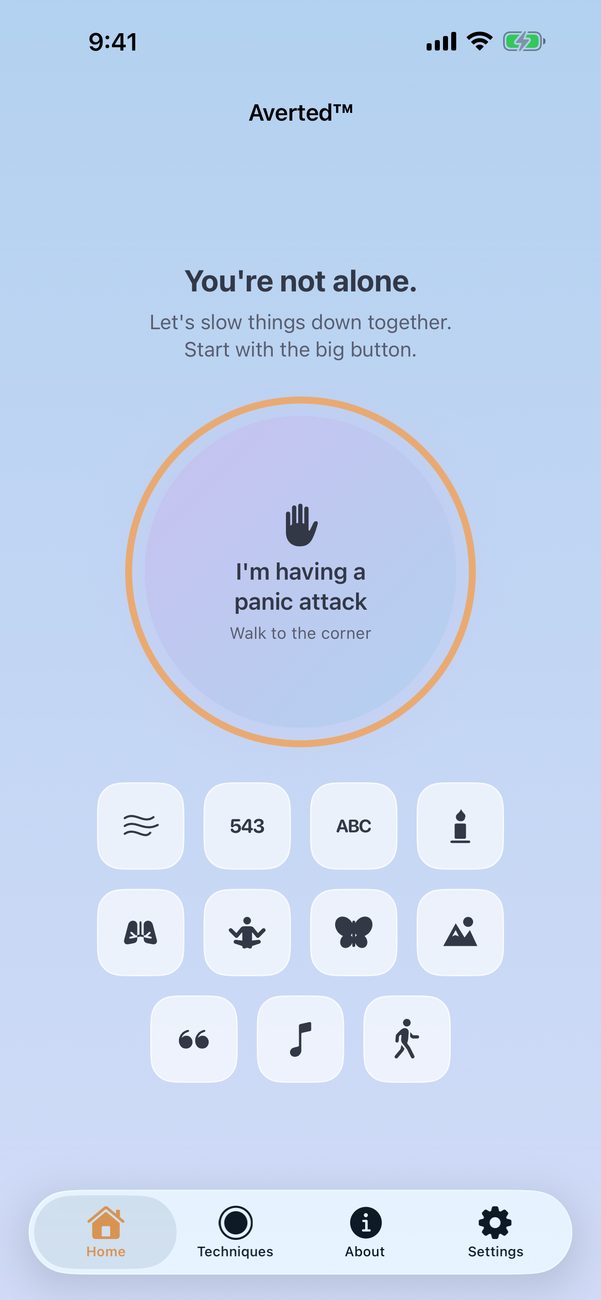
Averted™ is a self-help tool. It does not diagnose or treat medical conditions and is not a substitute for care from a qualified healthcare professional. If you are in immediate danger, call 911 (in the United States) or your local emergency number.
Make it yours
Choose which techniques appear on your home screen and which one opens from the big button. Set things up around what works best for you.
Create a technique
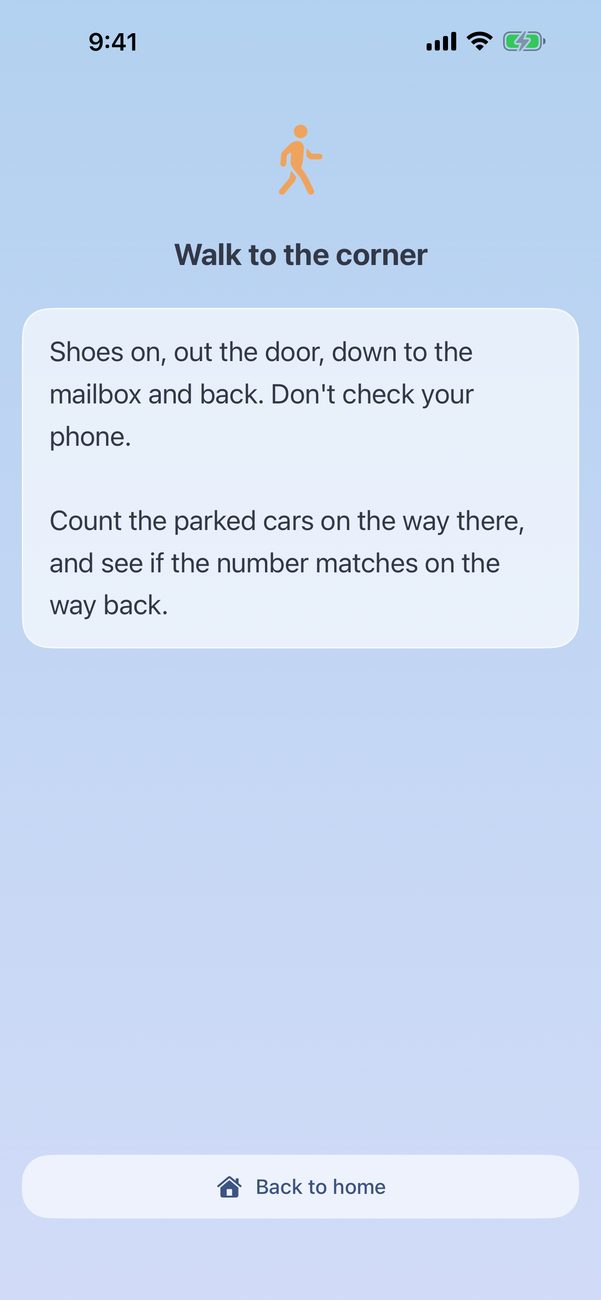
Write your own steps for something that helps you feel calmer. Give your technique a name and an icon so it’s easy to find. Tap + on the Techniques page to get started.
Share with a friend
Send a custom technique to a friend so they can add it to their own Averted app. Open the menu beside + and choose which techniques to share.
Bring in something new
Add a custom technique a friend has shared with you, then make it your own. Use the import option in the same menu to preview the techniques and choose which ones to keep.
Ten built-in techniques
Choose the ones that suit you, or try something different when you need it.
- Guided breathing — box breathing with a circle to follow and gentle taps at each change of breath on supported devices.
- 5-4-3-2-1 — name five things you can see, four you can touch, three you can hear, two you can smell, one you can taste.
- A-B-C around the room — find an object for each letter of the alphabet.
- Flower & candle breathing — breathe in like you're smelling a flower, out like you're blowing out a candle.
- Cyclic sighing — two breaths in through your nose, then one long, slow breath out through your mouth.
- Progressive muscle relaxation — tense and release each muscle group in turn.
- Butterfly hug — cross your arms and tap one shoulder, then the other, at a slow, steady pace.
- Special place — a guided visualization you can save and return to.
- Talk yourself through it — calm, true things to say to yourself, which you can rewrite in your own words.
- Put your headphones on — open your music app and play something that helps.
Made to be used in public
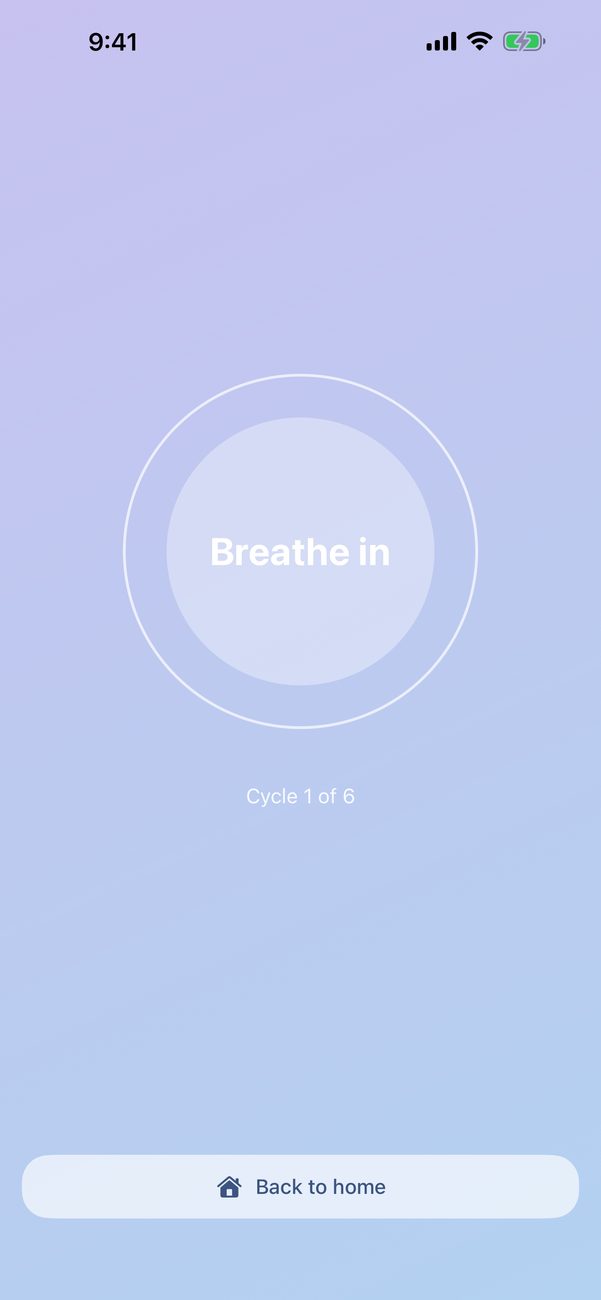
Follow the circle as it grows and shrinks, or use gentle taps to follow the rhythm on supported devices. The soft colors are intentional. For clearer text, turn on Increase Contrast in your device’s Accessibility settings. A subdued screen is not a privacy filter; someone nearby may still be able to read it.
Your writing stays out of the app-switcher preview while you’re editing a technique. This does not lock the app. Someone using your unlocked device can still open your techniques.
On your wrist
Your favorite technique comes first on Apple Watch, outlined in orange. The other supported techniques follow the order you chose on your home screen. You can use supported custom techniques there, too. Create and organize them on your iPhone or iPad, then let them sync to your watch.
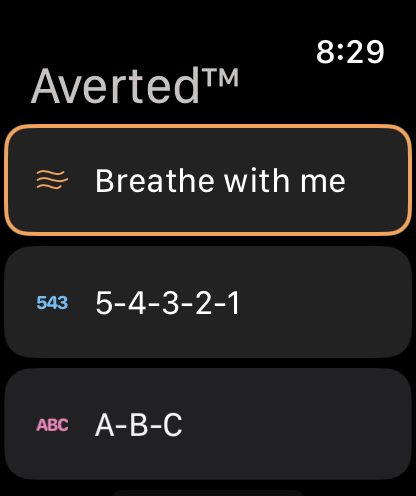
The watch uses a black background to keep the screen subdued in a dark room.
About the app
Open the About tab for a quick introduction, tips for making the app your own, and the disclaimer. Tap Get to know Averted for the walkthrough.
No episode tracking
Averted™ has no journal, mood log, or episode tracker. It does not automatically record when an episode happened, how severe it was, or what may have triggered it. Your own writing can contain personal or health information if you choose to include it.
Your techniques, saved special place, and settings are kept on your devices and sync through your own iCloud account when available. Check Last sync in Settings before deleting the app or changing phones. Changes that haven’t synced may be lost.
No in-app advertising, usage analytics, or separate app account. The app does not automatically send your writing or activity to us. The privacy policy explains storage, encryption, sharing, and optional store diagnostics.
Support
Have a question or an idea? Visit the support page to get in touch.